
How you will get Barcode and label design
Barcode label stickers play a crucial role in inventory management, product identification, asset tracking, logistics, and retail operations. Whether you are managing a warehouse, running a retail store, or manufacturing products, properly printed barcode labels help improve accuracy, efficiency, and traceability.
What Is a Barcode Label Sticker in Tangail?
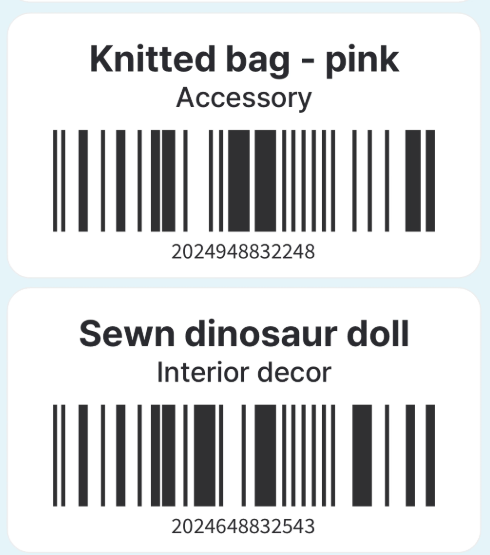
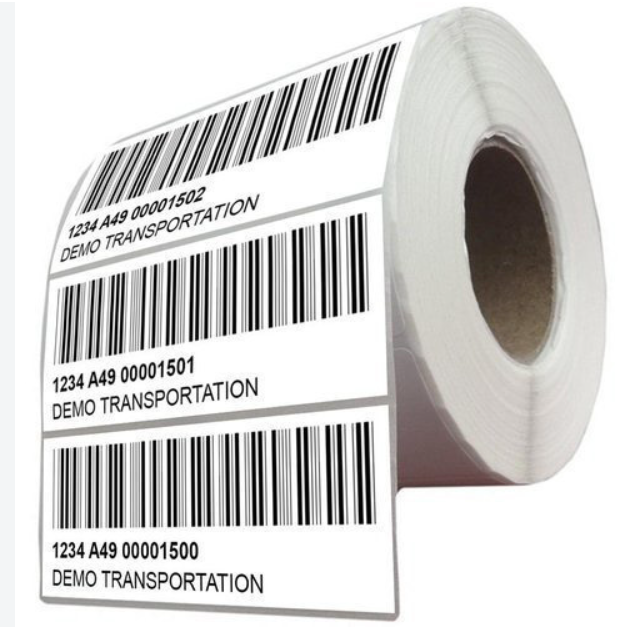
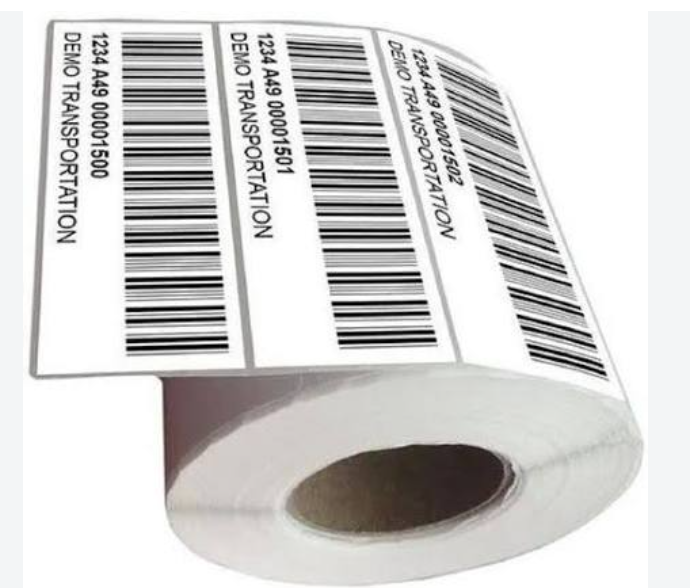
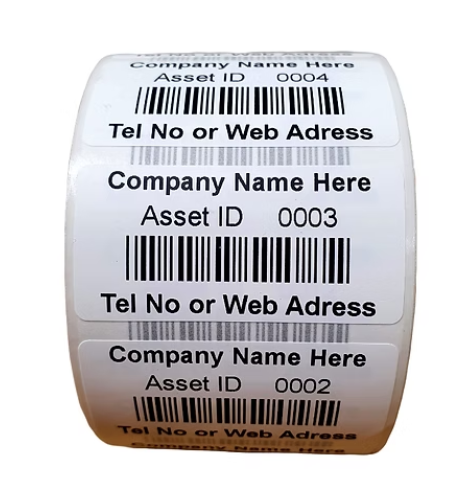
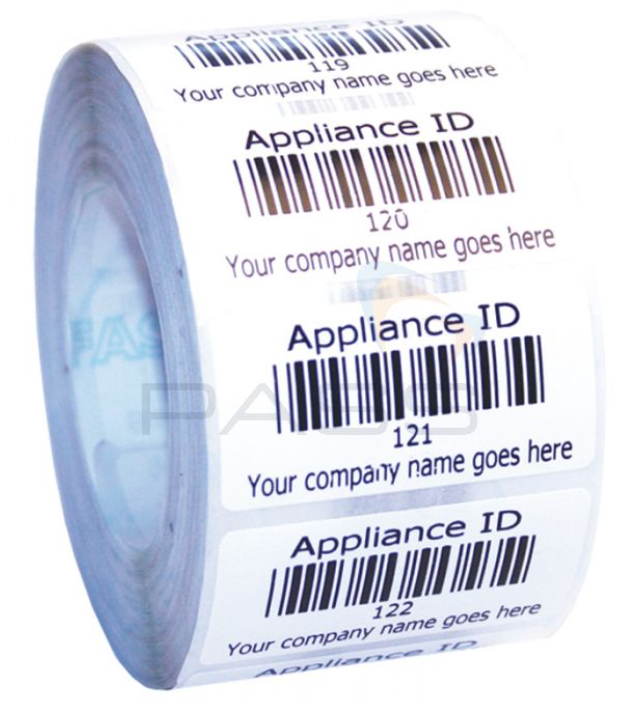
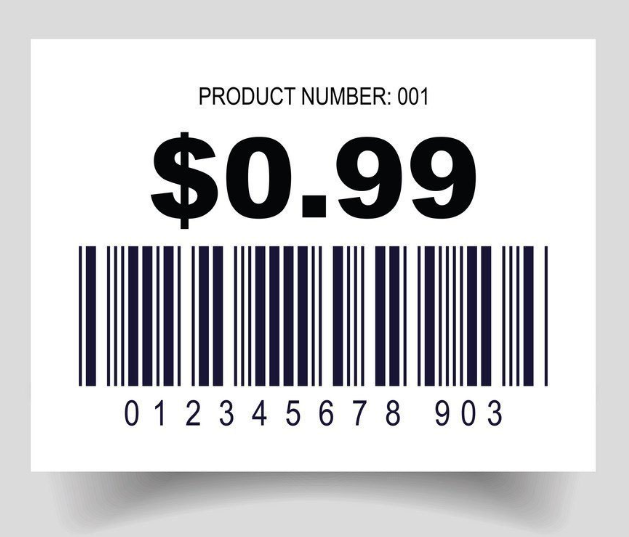
A barcode label sticker is an adhesive label containing a machine-readable barcode that represents product information, serial numbers, asset IDs, or tracking data. Barcode scanners can quickly read these codes, reducing manual data entry errors and improving operational efficiency. How you will get Barcode and label design
Common barcode types include:
- Code 128
- Code 39
- EAN-13
- UPC-A
- QR Code
- Data Matrix
Equipment Required barcode label near me
Before printing barcode labels, ensure you have the following:
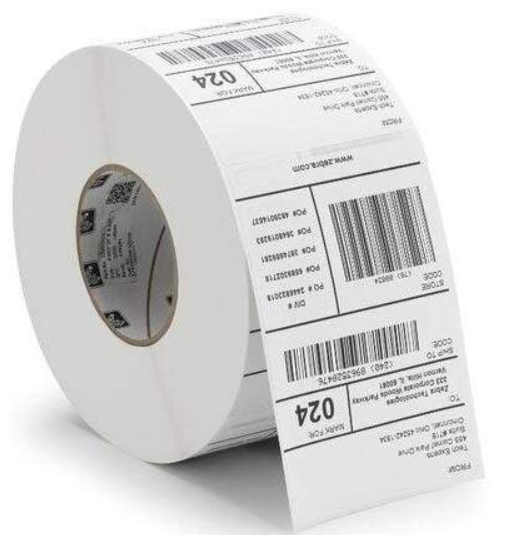
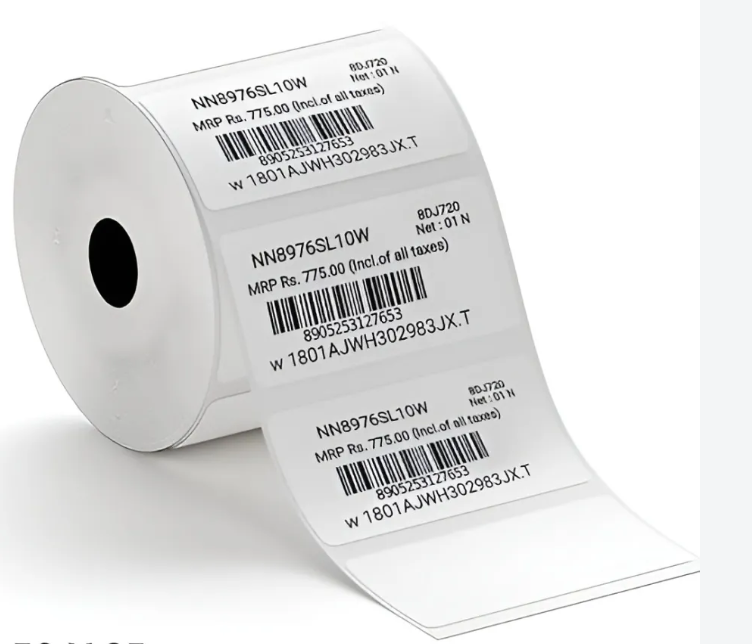
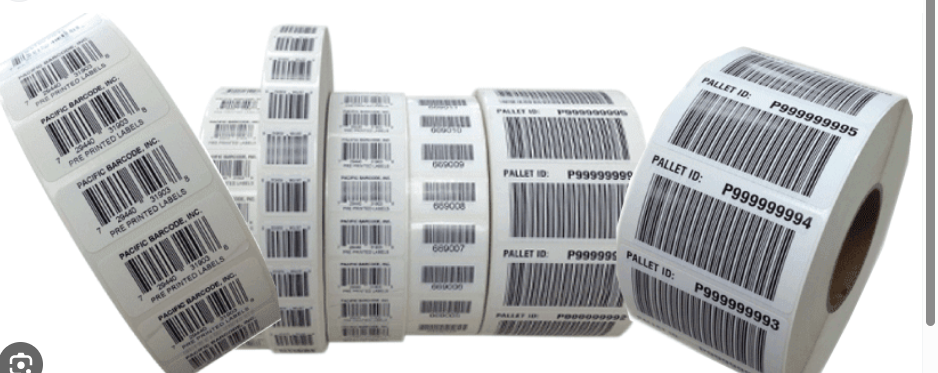
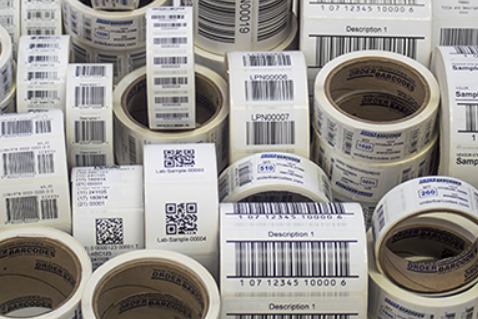
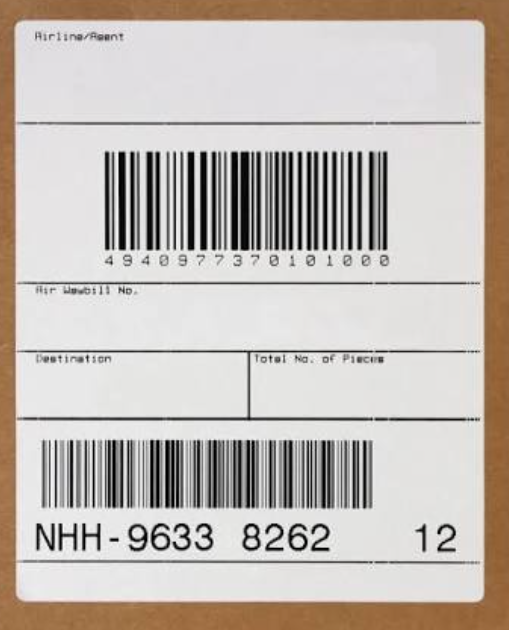
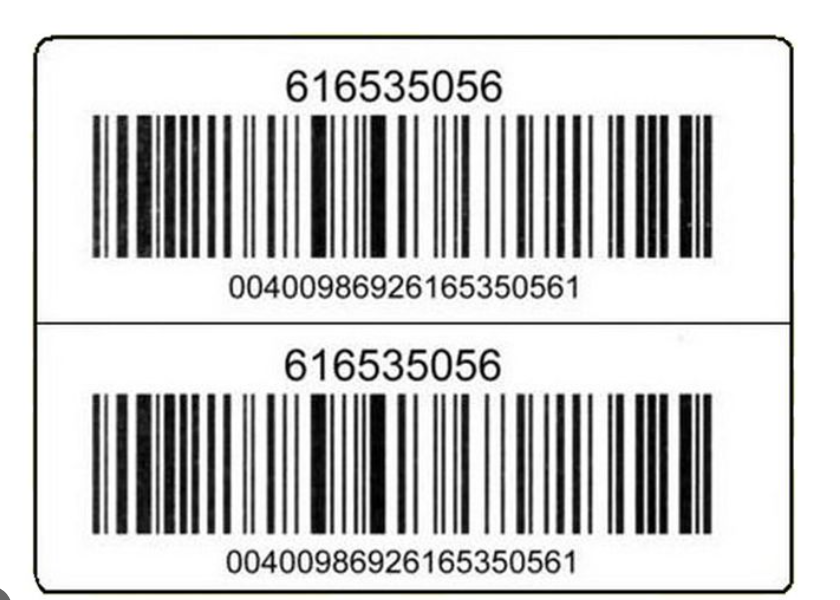
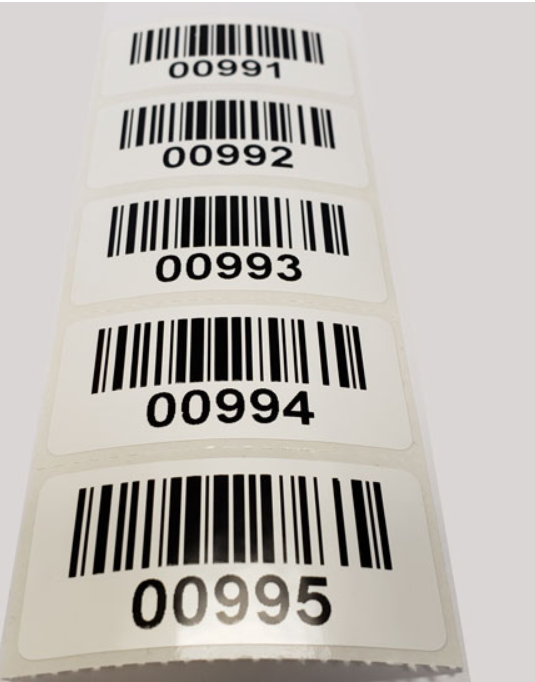
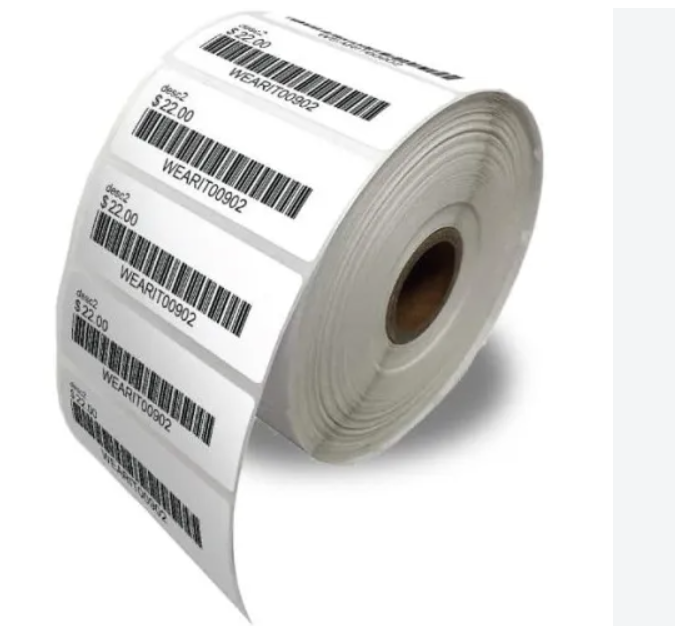
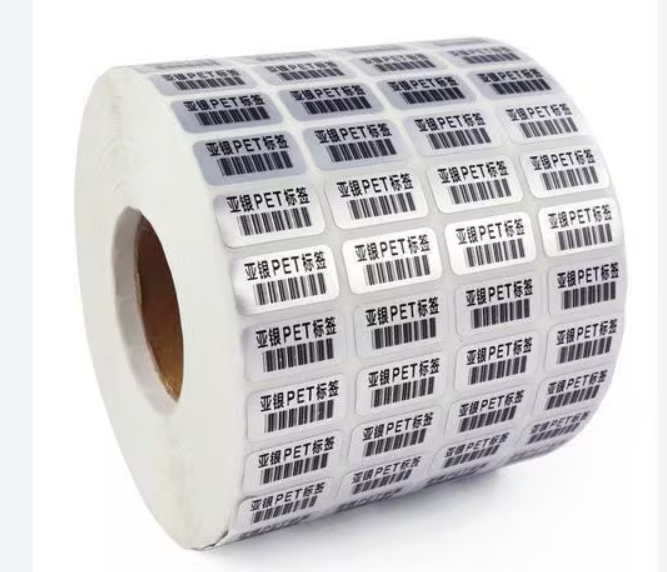
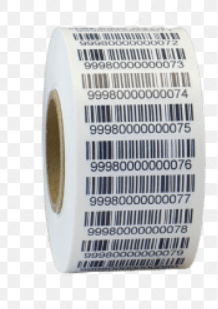
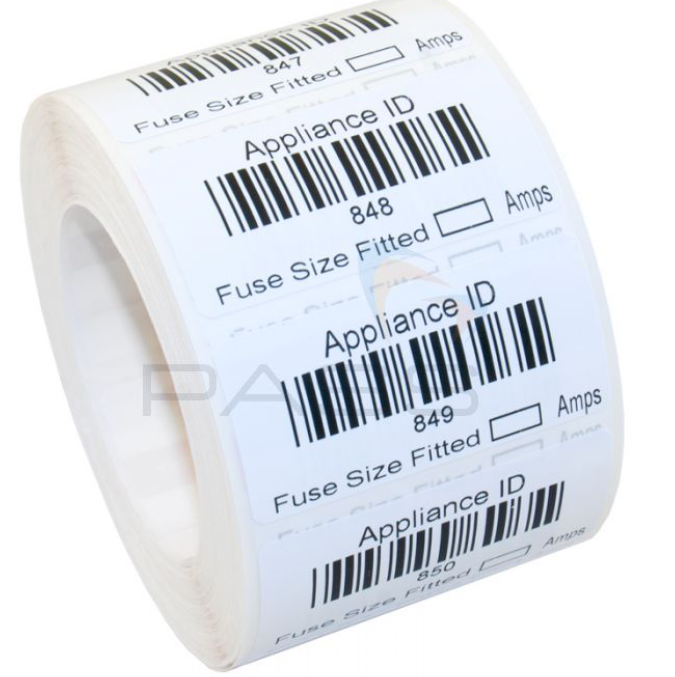
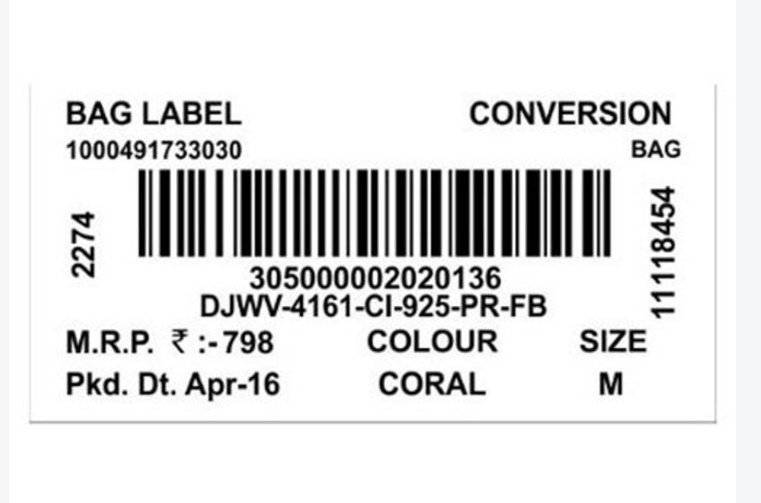
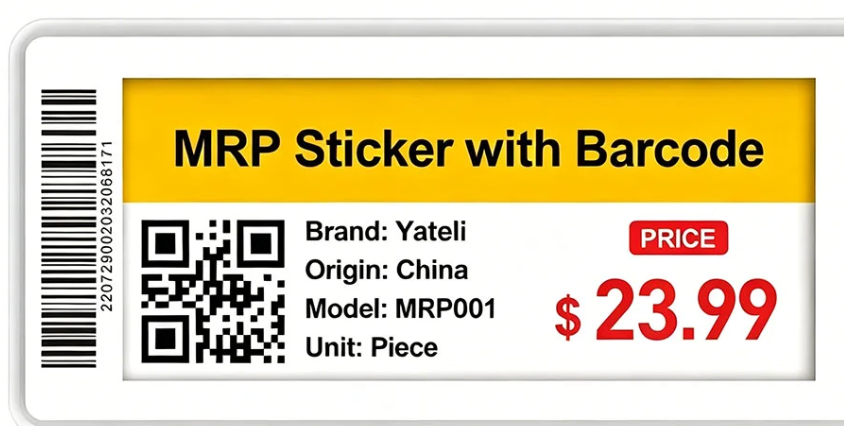
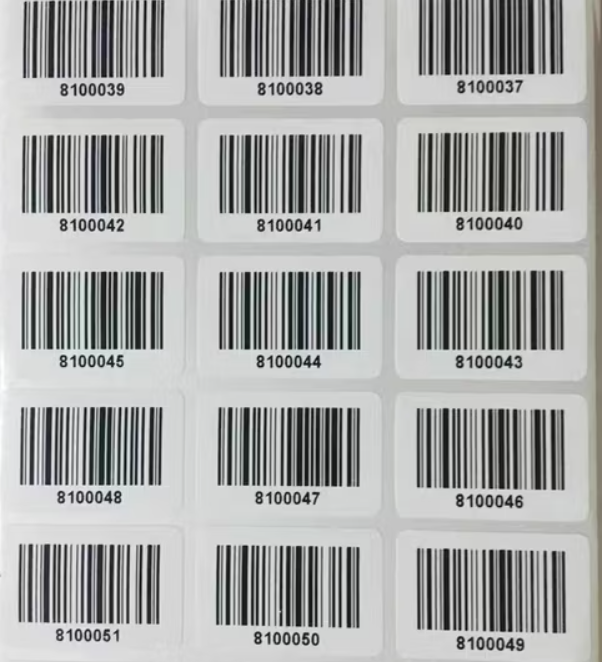
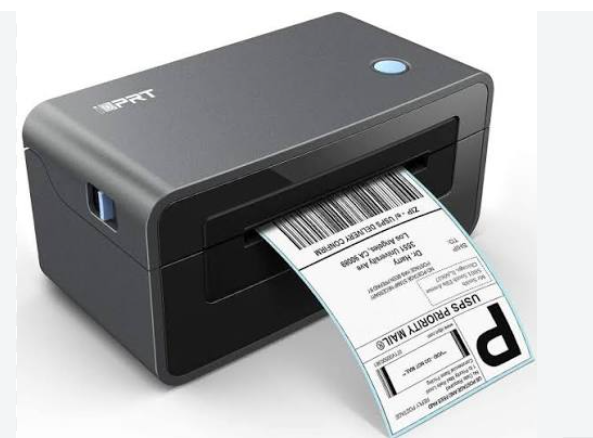
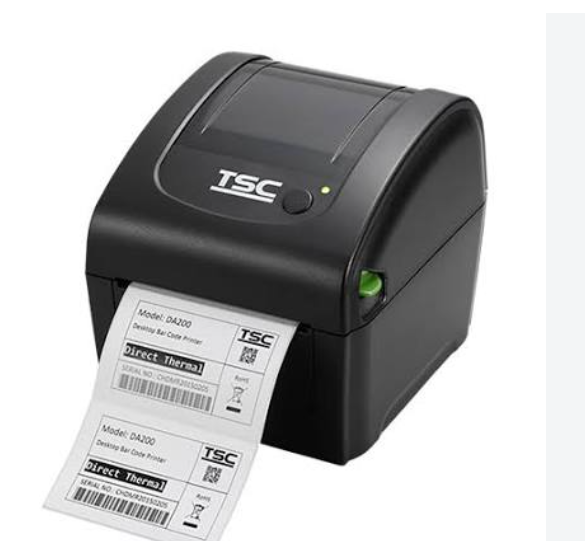
1. Barcode Label Printer
Popular barcode printers include:
- Zebra ZD421, ZD621, ZT231
- TSC TTP Series
- Bixolon SLP Series
- Brother Label Printers
2. Label Design Software qr code labels near me Tangail
You can create barcode labels using:
- BarTender
- ZebraDesigner
- NiceLabel
- Label Gallery
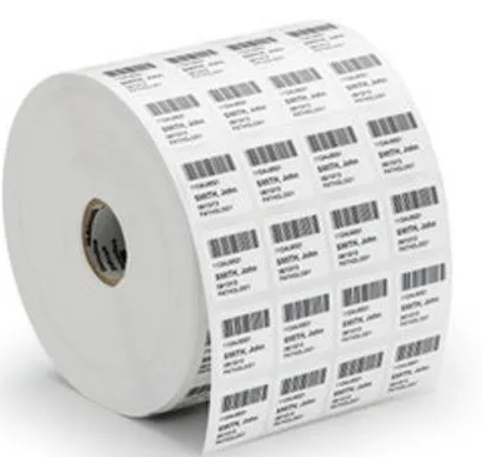
3. Label Media
Choose the right label material based on your application:
- Paper Labels
- PET Labels
- Silver PET Labels
- Direct Thermal Labels
- Thermal Transfer Labels
4. Ribbon (For Thermal Transfer Printing thermal label near me)
Common ribbon types:
- Wax Ribbon
- Wax-Resin Ribbon
- Resin Ribbon
Step-by-Step Guide to Printing Barcode Labels
Step 1: Create the Label Design
Open your label design software and create a new label template. Enter the required information such as:
- Product Name
- Part Number
- Serial Number
- Manufacturing Date
- QR Code or Barcode
Select the appropriate barcode symbology based on your business requirements.
Step 2: Configure Label Size
Set the exact label dimensions, for example:
- 50 mm × 30 mm
- 50 mm × 75 mm
- 100 mm × 50 mm
Ensure the label size matches your printer settings.
Step 3: Connect and Configure the Printer
Install the printer driver and connect the printer via USB, Ethernet, Wi-Fi, or Bluetooth.
Configure:
- Print Width
- Label Height
- Media Type
- Print Speed
- Darkness Level
Step 4: Load Labels and Ribbon barcode label shop near me tangail
For Thermal Transfer printers:
- Load the label roll.
- Install the ribbon.
- Close the print head securely.
For Direct Thermal printers:
- Load only the label roll.
- No ribbon is required.
Step 5: Calibrate the Printer
Run media calibration to detect the gap or black mark between labels. Proper calibration prevents label shifting and printing errors.
Step 6: Print a Test Label
Print one test label and verify:
- Barcode clarity
- Text readability
- Label alignment
- Print quality
Step 7: Verify Barcode Readability
Use a barcode scanner or verification tool to confirm the barcode scans correctly. Testing before mass production helps avoid costly reprints. Barcode labels should be printed at sufficient resolution and maintain proper white space (quiet zones) around the barcode for reliable scanning.
Best Practices for Barcode Printing
- Print at 300 DPI or higher for sharp barcode quality.
- Use black bars on a white background for maximum contrast.
- Avoid stretching or compressing barcode dimensions.
- Maintain adequate quiet zones around the barcode.
- Use PET labels and resin ribbons for harsh environments.
- Test scan labels before large production runs.
Common Printing Problems and Solutions
| Problem | Cause | Solution |
|---|---|---|
| Barcode Not Scanning | Poor print quality | Increase darkness and DPI |
| Missing Labels | Incorrect calibration | Recalibrate media sensor |
| Faded Print | Low-quality ribbon | Use proper ribbon type |
| Misaligned Printing | Wrong label settings | Verify label dimensions |
| Smudged Barcode | Incorrect media | Use suitable label stock |
Conclusion
Printing barcode label stickers is a straightforward process when the correct printer, software, labels, and settings are used. By selecting the right barcode type, configuring the printer properly, and verifying scan quality, businesses can produce durable, professional barcode labels that improve inventory control, product tracking, and operational efficiency.